የዋጋ ዝርዝር አስተዳደር
የዋጋ ዝርዝር (Price List) ባህሪ የዕቃዎችን ወይም የአገልግሎቶችን ዝርዝር (inventory items) ለማስተዳደር ያስችልዎታል። አዲስ ዕቃ ማከል፣ ማስተካከል፣ መሰረዝ፣ ማተም እና ከሰርቨር ጋር ማመሳሰል (synchronize) ይችላሉ። እያንዳንዱ ዕቃ ስም፣ ዋጋ፣ የቫት (VAT) ሁኔታfg፣ የኤክሳይዝ (excise) ሁኔታ እና የአቅርቦት ባሕሪ (nature of supply) ይኖረዋል።
ወደ ዋጋ ዝርዝር አስተዳደር መግባት
- ከመነሻ ማውጫው (Home Menu) ላይ ወደ POS ይሂዱ።
- Price List የሚለውን ይምረጡ።
- ለመግባት የመካከለኛውን ቁልፍ (ቁልፍ 7) ይጫኑ።
የሚከተሉትን አማራጮች ያያሉ፦
| አማራጭ | መግለጫ |
|---|---|
| አትም | የሁሉንም ዕቃዎች ሙሉ ዝርዝር ለማተም። |
| አስገባ | አዲስ ዕቃ ወደ ዝርዝሩ ለማካተት። |
| ለውጥ | በዝርዝር ውስጥ ያለን ነባር ዕቃ ለማስተካከል። |
| ሰርዝ | ዕቃን ከዝርዝር ውስጥ ለማስወገድ (soft delete)። |
| የዋጋ ዝርዝር ሳብ | የዋጋ ዝርዝሩን ከሰርቨሩ ጋር ለማመሳሰል። |
| አርማ ሳብ | ለደረሰኞች የሚሆን የድርጅትዎን አርማ (logo) ለማውረድ። |
የዋጋ ዝርዝርን ማተም
- አትም የሚለውን ይምረጡ።
- ፍቃድ ለመስጠት የCRM ካርድዎን ያስጠጉ።
- ማተሚያው (printer) መገናኘቱን እና ወረቀት መኖሩን ያረጋግጡ።
- መሣሪያው የሚከተሉትን ዝርዝሮች የያዘ ሙሉ የዋጋ ዝርዝር ያትማል፦
- የዕቃ ኮዶች (Item codes)
- የዕቃ ስሞች (Item names)
- ዋጋዎች (Prices)
- የቫት (VAT) ሁኔታዎች (በ
*፣`፣***` ምልክቶች የሚገለጹ) - የአቅርቦት ባሕሪ (Nature of supply - ለአገልግሎት
Sምልክት) - የታተመበት ቀን እና ሰዓት
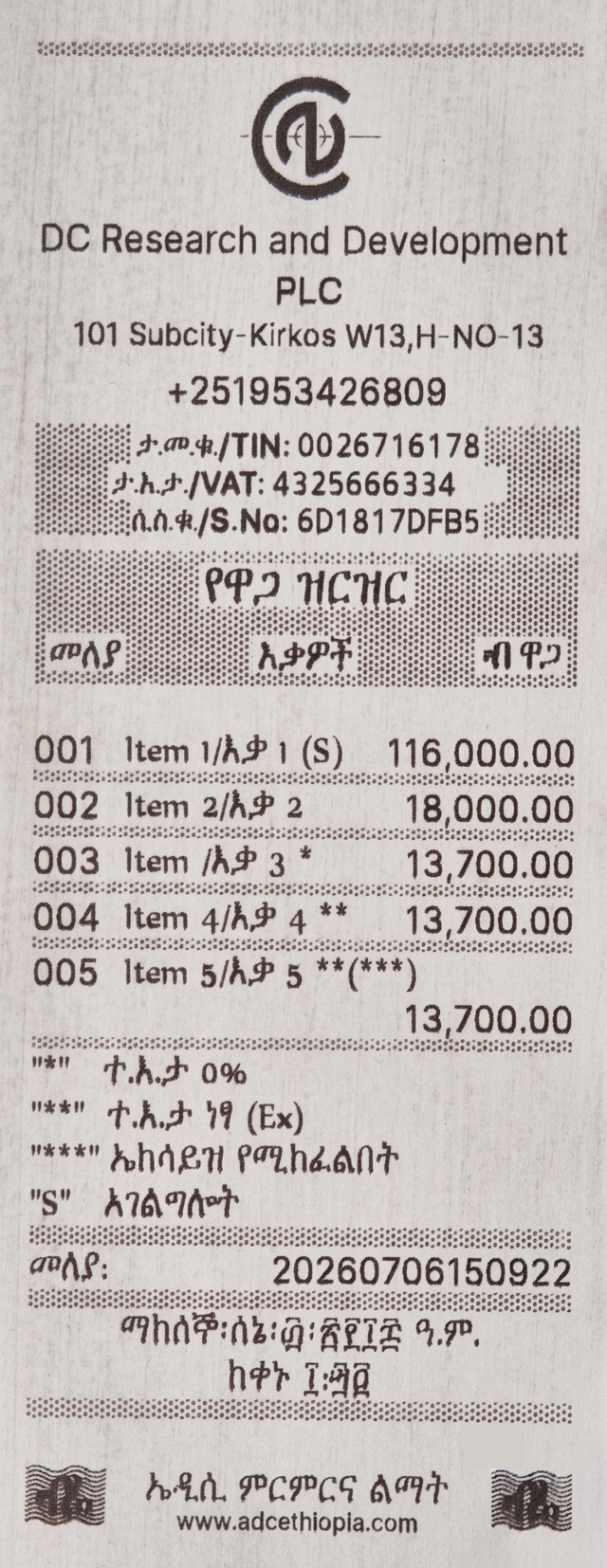
በታተመው የዋጋ ዝርዝር ላይ ያሉ ምልክቶች ትርጉም
| ምልክት | ትርጉም |
|---|---|
* |
በዕቃው ስም መጨረሻ ላይ ከተገኘ፣ ዕቃው ቫት የለውም (0% VAT) ማለት ነው። |
** |
በዕቃው ስም መጨረሻ ላይ ከተገኘ፣ ዕቃው ከቫት ነፃ (VAT exempted) ነው ማለት ነው። |
*** |
በዕቃው ስም መጨረሻ ላይ ከተገኘ驻፣ ዕቃው የኤክሳይዝ ታክስ (Excise taxable) የሚከፈልበት ነው ማለት ነው። |
(S) |
በዕቃው ስም መጨረሻ ላይ ከተገኘ፣ የዕቃው የአቅርቦት ባሕሪ አገልግሎት (Service) ነው ማለት ነው። |
ማሳሰቢያ፦ ከአንድ በላይ ምልክቶች በአንድ ዕቃ ስም መጨረሻ ላይ ተጣምረው ሊወጡ ይችላሉ። ለምሳሌ፦
** (S)የሚያሳየው ዕቃው ከቫት ነፃ መሆኑን እና ባሕሪውም አገልግሎት መሆኑን ነው።
አዲስ ዕቃ ማከል
- አስገባ የሚለውን ይምረጡfg።
- የዕቃውን ስም ያስገቡ (እስከ 25 ቁምፊዎች)።
- ዋጋውን (በብር) ያስገቡ።
- የቫት (VAT) ሁኔታውን ይምረጡ፦
- Yes – ቫት አለው (15%)።
- No – ቫት የለውም (0%)።
-
Exempt – ከቫት ነፃ ነው።
-
የአቅርቦት ባሕሪውን (nature of supply) ይምረጡ፦
- Service – ለአገልግሎቶች።
-
Goods – ለአካላዊ ምርቶች/ዕቃዎች።
-
የኤክሳይዝ ሁኔታውን ይምረጡ፦
- Yes – የኤክሳይዝ ታክስ ይከፈልበታል።
-
No – የኤክሳይዝ ታክስ የለበትም።
-
ኤክሳይዝ የሚከፈልበት ከሆነ፣ የኤክሳይዝ HS ኮዱን (excise HS code) ያስገቡ።
- የዕቃውን ዝርዝር መረጃ ያረጋግጡ።
- ዕቃው ወደ ዋጋ ዝርዝርዎ ውስጥ ይታከላል።
ማሳሰቢያ፦ በአንድ ጊዜ በርካታ ዕቃዎችን ማከል ይችላሉ። አንድ ዕቃ ካከሉ በኋላ ሌላ ዕቃ ማከል እንደሚፈልጉ መሣሪያው ይጠይቅዎታል።
ዕቃ ማስተካከል
- ለውጥ የሚለውን ይምረጡ።
- በዕቃዎችዎ ዝርዝር ውስጥ ለመዘዋወር የግራ (8) እና የቀኝ (6) ቁልፎችን ይጠቀሙ።
- ማስተካከል የሚፈልጉትን ዕቃ ይምረጡ።
- የዕቃውን ስም፣ ዋጋ፣ የቫት ሁኔታ፣ የአቅርቦት ባሕሪ ወይም የኤክሳይዝ ሁኔታ ያሻሽሉ።
- እያንዳንዱን ለውጥ ያረጋግጡ።
- ዕቃው በዋጋ ዝርዝርዎ ውስጥ ይሻሻላል።
ዕቃ መሰረዝ
- ሰርዝ የሚለውን ይምረጡ።
- በዕቃዎችዎ ዝርዝር ውስጥ ለመዘዋወር የግራ (8) እና የቀኝ (6) ቁልፎችን ይጠቀሙ።
- መሰረዝ የሚፈልጉትን ዕቃ ይምረጡ።
- ስረዛውን ያረጋግጡ።
- ዕቃው ለጊዜው ይሰረዛል (ከሽያጭ ማውጫው ላይ ይጠፋል እንጂ ሙሉ በሙሉ አይጠፋም፤ በኋላ ላይ በEdit ማውጫ በኩል መልሰው ሊያነቁት ይችላሉ)።
ዕቃዎችን ከሰርቨር ላይ ማውረድ
የዋጋ ዝርዝርዎን ከሰርቨሩ ጋር ለማመሳሰል ይህንን ይጠቀሙ። ይህ ሌላ መሣሪያ ላይ ሆነው ዕቃዎችን ካሻሻሉ እና በዚህኛው መሣሪያ ላይ ወቅታዊ ለማድረግ ሲፈልጉ ጠቃሚ ነው።
- የዋጋ ዝርዝር ሳብ የሚለውን ይምረጡ።
- መሣሪያው አዲሱን የዋጋ ዝርዝር ከሰርቨሩ ላይ ያወርዳል።
- አዲሱ ዝርዝር ነባሩን ዝርዝር ይተካል።
- የተሻሻለው ዝርዝር በራስ-ሰር ይታተማል።
የድርጅትዎን ሎጎ ማውረድ
የድርጅትዎ ሎጎ በደረሰኞች አናት ላይ ይወጣል። ሎጎውን ለማውረድ እና ወቅታዊ ለማድረግ ይህንን ይጠቀሙ።
- አርማ ሳብ የሚለውን ይምረጡ።
- መሣሪያው ሎጎዎን ከሰርቨሩ ላይ ያወርዳል።
- ሎጎው በመሣሪያዎ ላይ ይቀመጣል።
- መሣሪያው አዲሱን ሎጎ የሚያሳይ የሙከራ ህትመት ያትማል።
ማሳሰቢያ፦ ሎጎውን ከመሣሪያዎ ላይ ከማውረድዎ በፊት በድር ጣቢያችን (portal) በኩል ማስገባትዎን ያረጋግጡ።
የዕቃ ዝርዝር መረጃዎች
በዋጋ ዝርዝር ውስጥ ያለ እያንዳንዱ ዕቃ የሚከተሉትን መረጃዎች ይይዛል፦
| ፊልድ (Field) | መግለጫ |
|---|---|
| ስም | የዕቃው ስም (እስከ 25 ቁምፊዎች)። |
| ዋጋ | የአንዱ ዋጋ በብር። |
| ቫት | 15 (ቫት አለው)፣ 0 (ቫት የለውም)፣ ወይም (ከቫት ነፃ)። |
| ኮድ | በራስ-ሰር የሚሰጥ ልዩ ባለ 3 አኃዝ ኮድ። |
| ሁኔታ | በሽያጭ ወቅት የሚታይ (የነቃ) ወይም የተሰረዘ መሆኑን ያሳያል። |
| የአቅርቦት ባሕሪ | የአቅርቦት ባሕሪ (አገልግሎት ወይም ዕቃ)። |
| ኤክሳይዝ | የኤክሳይዝ ታክስ መጠን (ካልተዋቀረ 0 ይሆናል)። |
| ኤክሳይዝ ኮድ | የኤክሳይዝ ኮድ (ኤክሳይዝ የሚመለከተው ከሆነ)። |
የሚቀጥሉ እርምጃዎች
የክፍያ መድረኮችን እንዴት ማስተዳደር እንደሚችሉ ይማሩ።
➡️ ወደ የክፍያ መቀበያ ይቀጥሉ
Price List Management
The Price List feature allows you to manage your inventory items. You can add, edit, delete, print, and synchronise items with the server. Each item can have a name, price, VAT status, excise status, and nature of supply.
Accessing Price List Management
- From the Home Menu, navigate to POS.
- Select Price List.
- Press the middle key (button 7) to enter.
You will see the following options:
| Option | Description |
|---|---|
| Print a complete list of all items. | |
| Add | Add a new item to the list. |
| Edit | Edit an existing item. |
| Delete | Remove an item (soft delete). |
| Download Price List | Synchronise the list with the server. |
| Download Logo | Download your business logo for receipts. |
Printing the Price List
- Select Print Price List.
- Tap your CRM card to authorise.
- Make sure the printer is connected and has paper.
- The device will print the complete price list, including:
- Item codes
- Item names
- Prices
- VAT status (
*,**,***indicators) - Nature of supply (
Sfor service) - Date and time of printing
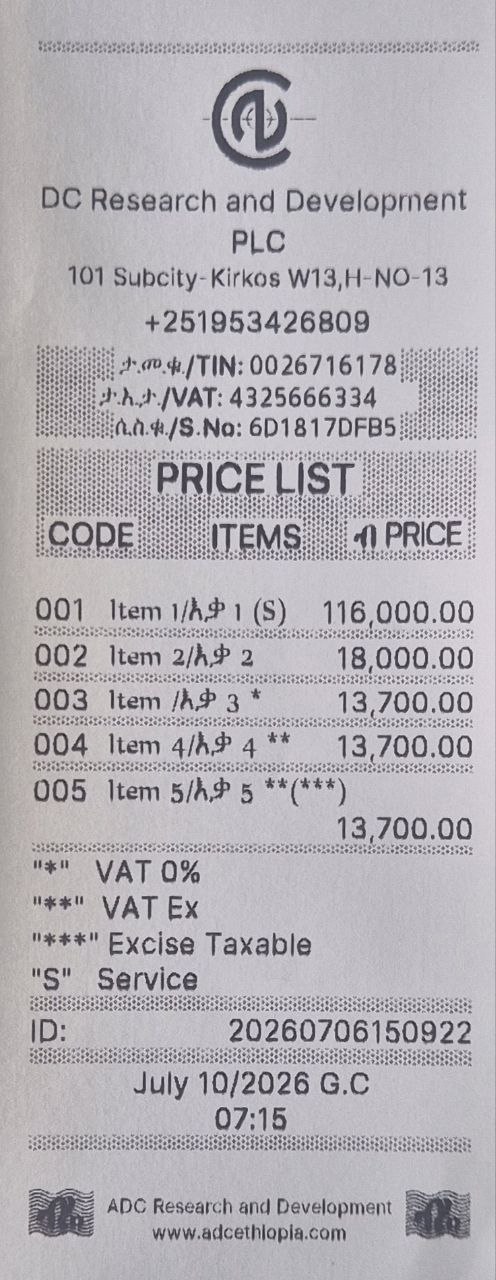
Understanding Price List Printout Symbols
| Symbol | Meaning |
|---|---|
* |
if appears at the end of the item name means item has No VAT (0%) |
** |
if appears at the end of the item name means item is VAT exempted |
*** |
if appears at the end of the item name means item is Excise taxable |
(S) |
if appears at the end of the item name means item's Nature of supply is service |
Note: A combination of the above symbols can appear at the nd of one item. Example: ** (S) indicates item is VAT exempted and its nature is service.
Adding an Item
- Select Add Item.
- Enter the item name (up to 25 characters).
- Enter the price (in Birr).
- Choose the VAT status:
- Yes – VAT applies (15%).
- No – VAT does not apply (0%).
- Exempt – VAT exempt.
- Choose the nature of supply:
- Service – for services.
- Goods – for physical products.
- Choose the excise status:
- Yes – excise tax applies.
- No – no excise tax.
- If excise applies, enter the excise HS code.
- Confirm the item details.
- The item will be added to your price list.
Note: You can add multiple items in one session. After adding an item, you will be asked if you want to add another.
Editing an Item
- Select Edit Item.
- Use the left (8) and right (6) keys to scroll through your items.
- Select the item you want to edit.
- Update the item name, price, VAT status, nature of supply, or excise status.
- Confirm each change.
- The item will be updated in your price list.
Deleting an Item
- Select Delete Item.
- Use the left (8) and right (6) keys to scroll through your items.
- Select the item you want to delete.
- Confirm the deletion.
- The item will be soft‑deleted (it will no longer appear in inventory, but can be restored later using edit menu).
Downloading Items from the Server
Use this to synchronise your price list with the server. This is useful if you have updated items from another device.
- Select Download Items.
- The device will retrieve the latest price list from the server.
- The new items will replace the existing list.
- The updated list will be printed automatically.
Downloading Your Logo
Your business logo appears at the top of receipts. Use this to download and update it.
- Select Fetch Logo.
- The device will retrieve your logo from the server.
- The logo will be saved to your device.
- The device will print a test print showing the new logo.
Note: Before downloading logo please enter logo using our portal.
Item Details
Each item in the price list contains the following information:
| Field | Description |
|---|---|
| Name | The item name (up to 25 characters). |
| Price | The unit price in Birr. |
| VAT | 15 (VAT applies), 0 (no VAT), or (exempt). |
| Code | A unique 3‑digit code assigned automatically. |
| Active | (visible in sales) or (deleted). |
| Nature of Supply | (service) or (goods). |
| Excise | Excise tax rate (0 if not set). |
| Excise Code | The excise code (if excise is applicable). |
Next Steps
Learn how to manage payment platforms.
➡️ Continue to Payment Management