ሪፖርቶች
በእርስዎ ነካ ላይ ያለው የሪፖርቶች ተግባር የሽያጭ እንቅስቃሴዎን ማጠቃለያ ለማየት እና ለማተም ያስችልዎታል። ይህ ለሂሳብ ማመጣጠን (reconciliation)፣ ለኦዲት እና ለንግድ ትንተና በእጅጉ ይጠቅማል።
ወደ ሪፖርቶች መግባት
- ከመነሻ ማውጫው (Home Menu) ላይ ወደ ሽያጭ (Sales) ከዚያም ሪፖርቶች (Reports) ማውጫ ላይ እስኪደርሱ ድረስ ወደ ቀኝ ይሂዱ።
- ሪፖርቶች (Reports) ን ለመምረጥ የመካከለኛውን ቁልፍ (ቁልፍ 7) ይጫኑ።
ምክር፦ የሪፖርት ማውጫው አጭር ሪፖርት እና ማጠቃለያ የተባሉ 2 ማውጫዎችን ይዟል። በዜድ ረፖርት ስር ደግሞ እለታዊ እና ማጠቃለያ የተባሉ ሁለት የዜድ ሪፖርት ዓይነቶችን ያገኛሉ።
የሚከተሉትን የሪፖርት አማራጮች ያያሉ፦
| አማራጭ | መግለጫ |
|---|---|
| አጭር ሪፖርት | የቅርብ ጊዜ የግብይት ክንውኖች አጭር ማጠቃለያ። |
| እለታዊ ዜድ ሪፖርት | የዕለታዊ ክንውኖች ማጠቃለያ። |
| ማጠቃለያ ዜድ ሪፖርት | ለተመረጠ የቀን ገደብ የሚዘጋጅ ማጠቃለያ። |
አጭር ሪፖርት
ይህንን አማራጭ የቅርብ ጊዜ ግብይቶችን ፈጣን ማጠቃለያ ለማግኘት ይጠቀሙበት።
- አጭር ሪፖርት የሚለውን ይምረጡ።
- እንዲካተት የሚፈልጉትን የግብይቶች ብዛት ያስገቡ (ለምሳሌ፦ ለመጨረሻዎቹ 10 ግብይቶች
10ይጻፉ)። - ለማረጋገጥ የመካከለኛውን ቁልፍ (7) ይጫኑ።
-
ጥያቄው ተስተናግዶ እስኪያልቅ ድረስ የጥበቃ ስክሪን (wait screen) ይታያል፤ ከዚያም ከጥቂት ጊዜ በኋላ ሪፖርቱ ይታተማል። ሪፖርቱ የሚከተሉትን ያሳያል፦
- የደረሰኝ መለያ ቁጥር (Invoice ID number)
- የሰነድ ቁጥር (Document number)
- ጠቅላላ ድምር (Grand Total)
- የክፍያ ሁነታ (Payment Mode)
- የክፍያ ኮድ (Payment Code)
- የክፍያ ሁኔታ (Payment Status)
- የክፍያ ቀን (Payment Date)
- የደረሰኝ ዓይነት (Invoice Type)
- ለተጭማሪ መረጃ የቫውቸር ኮድ (Voucher code)
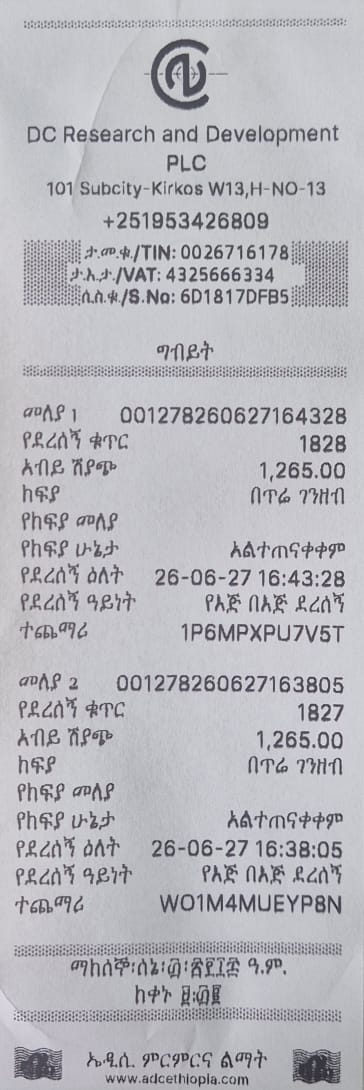
ምክር፦ ሙሉ ሪፖርት ሳያትሙ የቅርብ ጊዜ ሽያጮችን በፍጥነት ለመፈተሽ ይህንን ይጠቀሙ።
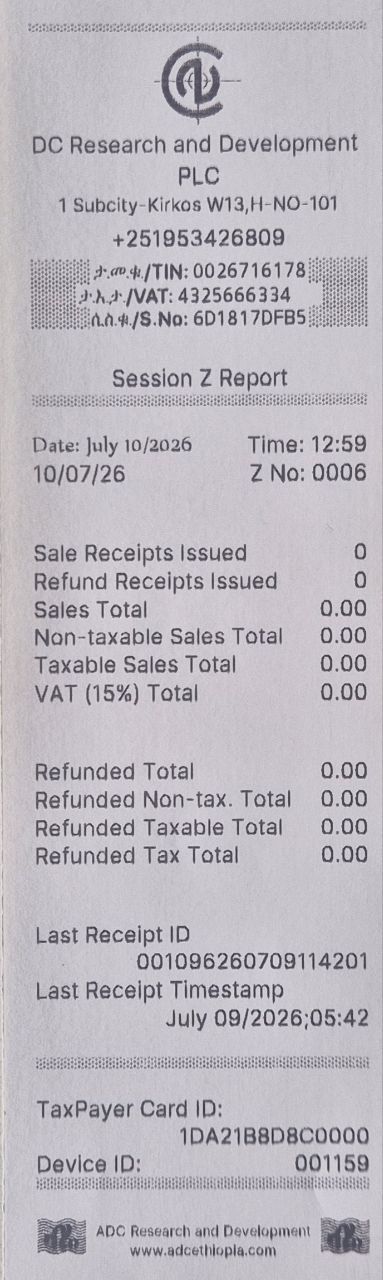
ዕለታዊ የዜድ-ሪፖርት
ይህንን በሥራ ቀን ውስጥ በማንኛውም ሰዓት መጠቀም ይቻላል። የዜድ-ሪፖርቱ ጥያቄው እስከቀረበበት ሰዓት ድረስ ያለውን የዚያኑ ዕለት ሙሉ ሽያጭ ያጠቃልላል።
- የመካከለኛውን ቁልፍ (7) በመጫን ወደ የማጠቃለያ-ሪፖርት ይግቡ።
- ዕለታዊ የሚለውን ይምረጡ።
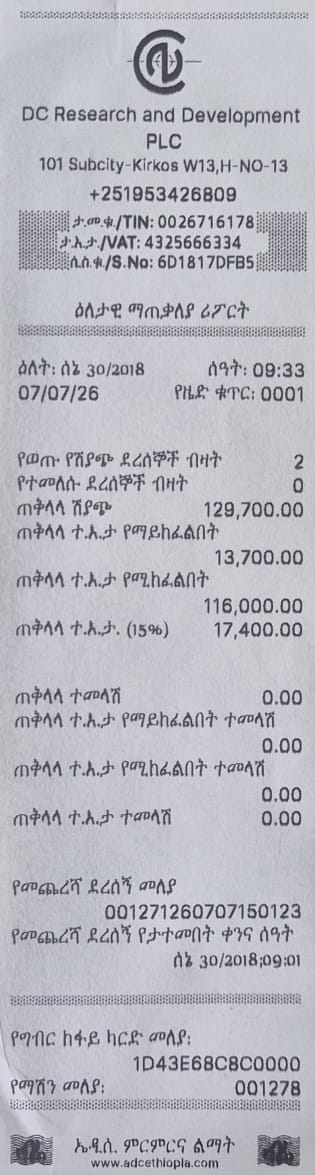
- ጥያቄው ተስተናግዶ እስኪያልቅ ድረስ የጥበቃ ስክሪን ይታያል፤ ከዚያም ከጥቂት ጊዜ በኋላ ሪፖርቱ ይታተማል። ሪፖርቱ የሚከተሉትን ያሳያል፦
- የZ ሪፖርቱ የወጣበት ቀን እና ሰዓት
- የዜድ-ቁጥር (Z‑Number) (የዜድ ሪፖርት ባወጡ ቁጥር ይህ ቁጥር እየጨመረ ይሄዳል)
- የተቆረጡ ደረሰኞች ብዛት (Issued invoices count)
- የተሰረዙ ደረሰኞች ጠቅላላ ድምር (Canceled invoices total)
- ጠቅላላ ሽያጭ (Total sales)
- ታክስ የማይከፈልባቸው ሽያጮች ጠቅላላ ድምር (Total non-taxable sales)
- ታክስ የሚከፈልባቸው ሽያጮች ጠቅላላ ድምር (Total taxable sales)
- ጠቅላላ የተጨማሪ እሴት ታክስ / ቫት (Total VAT)
- የተመላሽ ሽያጮች ጠቅላላ ድምር (Total refund sales)
- ታክስ የማይከፈልባቸው የተመላሽ ሽያጮች ጠቅላላ ድምር (Total refund non-taxable sales)
- ታክስ የሚከፈልባቸው የተመላሽ ሽያጮች ጠቅላላ ድምር (Total refund taxable sales)
- የተመላሽ ሽያጮች ጠቅላላ ቫት (Total refund VAT)
- የመጨረሻው የደረሰኝ መለያ ቁጥር (Last invoice number ID)
- የመጨረሻው ደረሰኝ የወጣበት ቀን እና ሰዓት
- የግብር ከፋይ ካርድ መለያ (Taxpayer card ID)
- የማሽን መለያ (Machine ID)
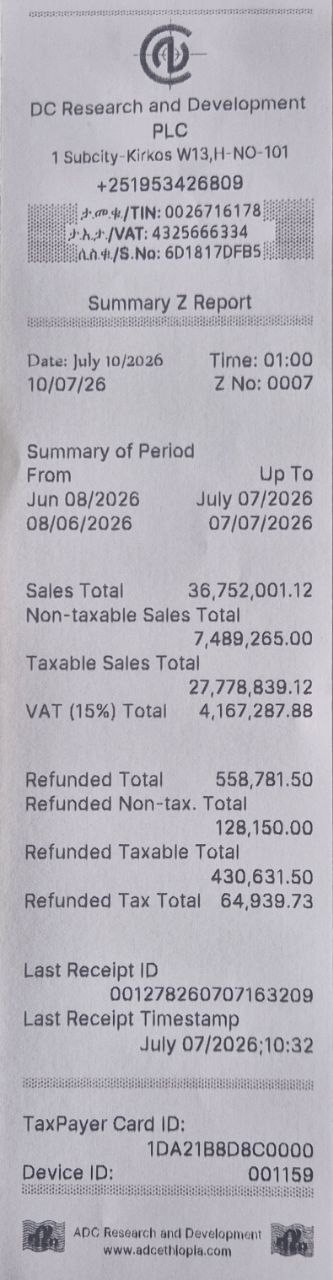
የማጠቃለያ የዜድ-ሪፖርት
ይህንን አማራጭ ለተወሰነ የቀን ገደብ ሪፖርት ለማውጣት ይጠቀሙበት።
አስፈላጊ፦ የኢትዮጵያን የቀን አቆጣጠር (calendar) ይጠቀሙ። ለምሳሌ ከሰኔ 10 2018 ዓ.ም እስከ ሰኔ 30 2018 ዓ.ም ያለውን የማጠቃለያ ሪፖርት ለማግኘት "101018" - "301018" ብለው ያስገቡ።
- የመካከለኛውን ቁልፍ (7) በመጫን ወደ ማጠቃለያ ሪፖርት ይግቡ።
- ማጠቃለያ የሚለውን ይምረጡ።
- የመጀመሪያውን ቀን ያስገቡ (ቅርጸት፦ ቀቀወወዓዓ፣ ለምሳሌ ለሰኔ 10 2018 ዓ.ም.
101018ይጻፉ)። - የመካከለኛውን ቁልፍ (7) ይጫኑ።
- የመጨረሻውን ቀን ያስገቡ (ቅርጸት፦ ቀቀወወዓዓ)።
- የመካከለኛውን ቁልፍ (7) ይጫኑ።
- ጥያቄው ተስተናግዶ እስኪያልቅ ድረስ የጥበቃ ስክሪን ይታያል፤ ከዚያም ከጥቂት ጊዜ በኋላ ሪፖርቱ ይታተማል። ሪፖርቱ የሚከተሉትን ያሳያል፦
- ለዚያ የቀን ገደብ የተጠቃለሉትን የላይኛውን ዜድ-ሪፖርት ዝርዝሮች።
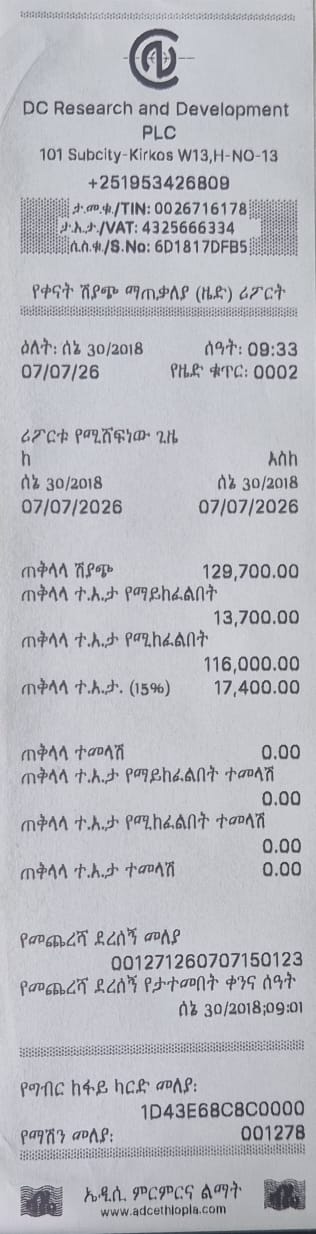
ምክር፦ ይህንን አማራጭ ለወርሃዊ ወይም ለሳምንታዊ የሂሳብ ማወራርጃ ይጠቀሙበት።
የሪፖርት መረጃዎችን መረዳት
የዜድ ሪፖርቶች የሚከተሉትን ዋና ዋና መረጃዎች ያካትታሉ፦
| መረጃ | መግለጫ |
|---|---|
| ጠቅላላ ሽያጭ | የሁሉም ሽያጮች ጠቅላላ ዋጋ (ከታክስ በፊት)። |
| ጠቅላላ ትእታ የሚከፈልበት | የተጨማሪ እሴት ታክስ (VAT) የሚጣልባቸው ዕቃዎች/አገልግሎቶች ዋጋ። |
| ጠቅላላ ትእታ የማይከፈልበት | ከተጨማሪ እሴት ታክስ (VAT) ነፃ የሆኑ ዕቃዎች/አገልግሎቶች ዋጋ። |
| ጠቅላላ ትእታ | የተሰበሰበው ጠቅላላ የቫት መጠን (የታክስ የሚከፈልበት ሽያጭ 15%)። |
| ጠቅላላ ተመላሽ | የተመላሽ የተደረጉ ሽያጮች ጠቅላላ ዋጋ። |
| ጠቅላላ ክፍያዎች | በክፍያ ዘዴ የተከፋፈሉ ጠቅላላ ድምሮች (በጥሬ ገንዘብ፣ በብድር፣ ወዘተ)። |
| የመጨረሻ ደረሰኝ | የወጣው የመጨረሻው የደረሰኝ ቁጥር። |
ሪፖርቶችን ማተም
- ሪፖርት ከማውጣትዎ በፊት ፕሪንተሩ መገናኘቱን እና የወረቀት ጥቅል መኖሩን ያረጋግጡ።
የሚቀጥሉ እርምጃዎች
አሁን ስለ ሽያጭ እና ሪፖርት አወጣጥ በሚገባ ስላወቁ፣ የፖስ መተግበሪያን ያስሱ።
➡️ ወደ የዋጋ ዝርዝር አስተዳደር ይቀጥሉ
Reports
The Reports feature on your NEKA allows you to view and print summaries of your sales activity. This helps with reconciliation, auditing, and business analysis.
Accessing Reports
- From the Home Menu, navigate to Sales press enter and navigate right untill you reach Reports menu.
- Press the middle key (button 7) to select Reports..
Tip: The report menu holds 2 menus Mini report and Z report and under Z report you will find two types of z reports Daily and Summary
You will see the following report options:
| Option | Description |
|---|---|
| Mini Report | A short summary of recent transactions. |
| Daily Z‑Report | daily summary |
| Summary Z‑Report | Summary for a selected date range. |
Mini Report
Use this to get a quick summary of recent transactions.
- Select Mini Report.
- Enter the number of transactions to include (e.g.,
10for the last 10 transactions). - Press middle key (7) to confirm.
-
A wait screen will be displayed until the request is processed and shortly after the report will print, showing:
- Invoice ID number
- Document number
- Grand Total
- Payment Mode
- Payment Code
- Payment Status
- Payment Date
- Invoice Type
- Voucher code
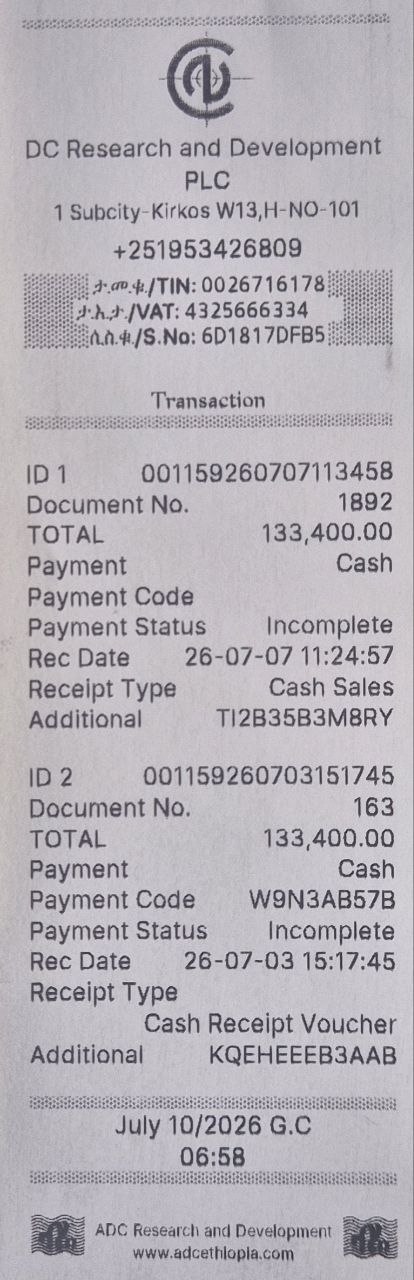
Tip: Use this to quickly check recent sales without printing a full report.
Daily Z‑Report
Use this at any time of the business day. The Z‑Report summarises all sales of that day up to the query time.
- Press middle key (7) and enter Z‑Report.
- Select Daily Z‑Report
-
A wait screen will be displayed until the request is processed and shortly after the report will print, showing:
-
Date and time that the z report was issued on
- A Z‑Number (increments each time you issue z report)
- Issued invoices count
- Canceled invoices total
- Total sales
- Total non-taxable sales
- total taxable sales
- total vat
- Total refund sales
- Total refund non-taxable sales
- total refund taxable sales
- total refund vat
- Last invoice number ID
- Last Invoice issue date and time
- Taxpayer card ID
- Machine ID
Summary Z‑Report
Use this to get a report for a specific date range.
Important: Use Ethiopian calander dates, e.g., "101018" - "301018" to get summary report from Sene 10 2018 E.C up to Sene 30 2018 E.C.
- press middle key (7) and enter Z‑Report.
- Select Summary Z‑Report.
- Enter the start date (format: DDMMYY, e.g.,
101018for Sene 10 2018 E.C.). - Press middle key (7).
- Enter the end date (format: DDMMYY).
- Press middle key (7).
-
A wait screen will be displayed until the request is processed and shortly after the report will print, showing:
- The same details of the above Z report summrized for that date range.
Tip: Use this for monthly or weekly reconciliation.
Understanding Report Data
Z Reports include the following key information:
| Data | Description |
|---|---|
| Sales Total | Total value of all sales (before tax). |
| Taxable Sales | Value of goods/services subject to VAT. |
| Non‑taxable Sales | Value of goods/services exempt from VAT. |
| VAT Total | Total VAT collected (15% of taxable sales). |
| Refund Total | Total value of refunded sales. |
| Payment Breakdown | Totals by payment method (cash, credit, etc.). |
| Last Invoice | The last invoice number issued. |
Printing Reports
- Make sure the printer is connected and has paper before generating a report.
Next Steps
Now that you understand sales and reporting, explore the POS application.
➡️ Continue to Price List Management