የደረሰኝ ማሻሻያ
የደረሰኝ ማሻሻያ (Invoice Adjustment) ተግባር ቀደም ብለው በተቆረጡ ደረሰኞች ላይ አስፈላጊውን ማሻሻያ ለማድረግ ያስችላል። ይህም ዕቃ ሲመለስ (returns) ለማስተናገድ፣ የደረሰኝ ቅጂ (duplicate) ወ.ዘ.ተ ጠቃሚ ነው።
ወደ የደረሰኝ ማሻሻያ ማውጫ መግባት
- ከመነሻ ማውጫው (Home Menu) ላይ ወደ ሽያጭ (Sales) ይሂዱ።
- የደረሰኝ ማሻሻያ (Invoice Adjustment) የሚለውን ይምረጡ።
- ለመግባት የመካከለኛውን ቁልፍ (ቁልፍ 7) ይጫኑ።
የሚከተሉትን አማራጮች ያያሉ፦
| አማራጭ | መግለጫ |
|---|---|
| የገንዘብ መቀበያ( Sale) | ቀደም ሲል በነበረ የብድር ደረሰኝ ላይ በመመስረት የሽያጭ ደረሰኝ ። |
| ተቀናሽ ግብር (Withholding) | የተቀናሽ ግብርዊዝሆልዲንግ ታክስ ደረሰኝ ማውጣት። |
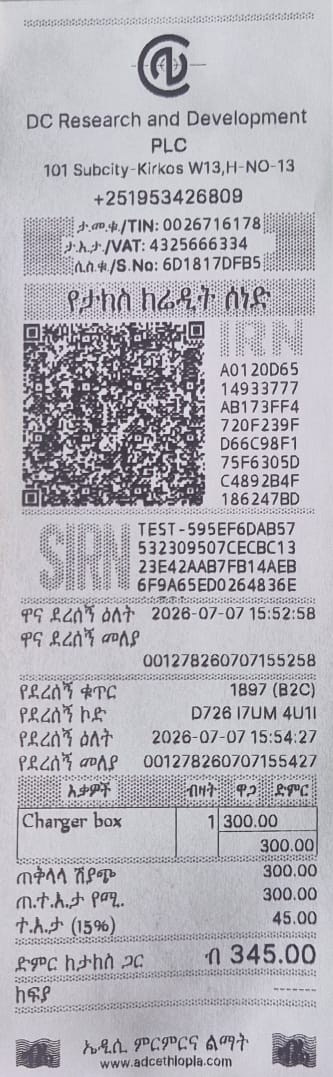
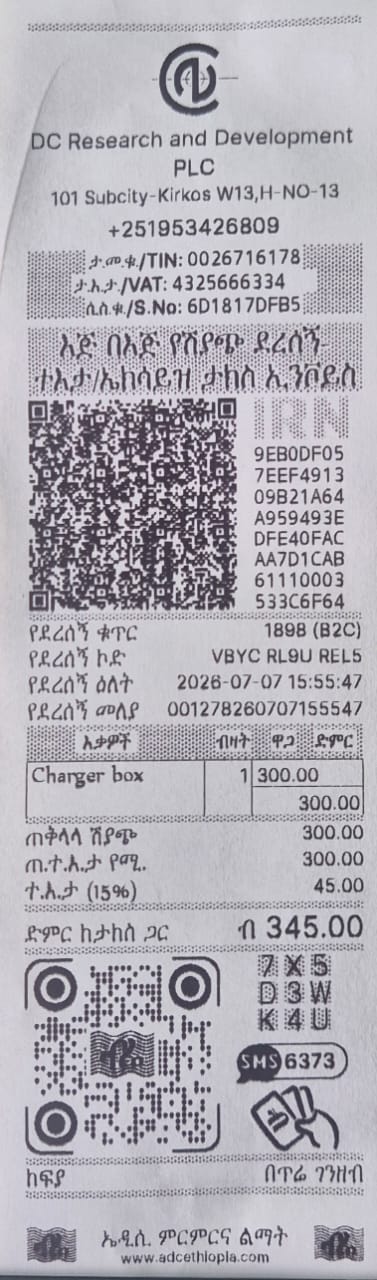
| የታክስ ክሬዲት ሰነድ (Credit Note) | በአንድ ደረሰኝ ላይ የዋጋ/የብዛት ቅናሽ ማስተካከያ (Credit Note) ማውጣት። |
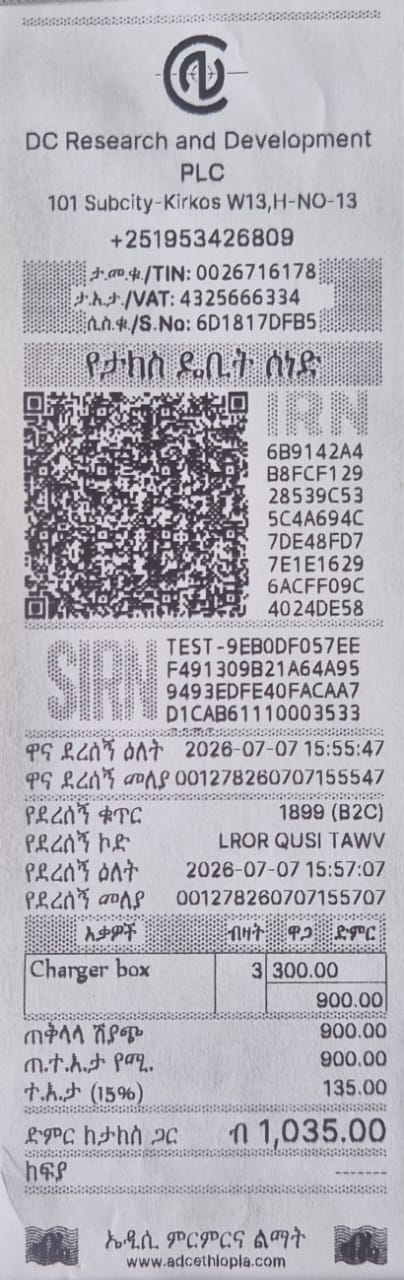
| የታክስ ዴቢት ሰነድ (Debit Note) | በአንድ ደረሰኝ ላይ የዋጋ/የብዛት ጭማሪ ማስተካከያ (Debit Note) ማውጣት። |
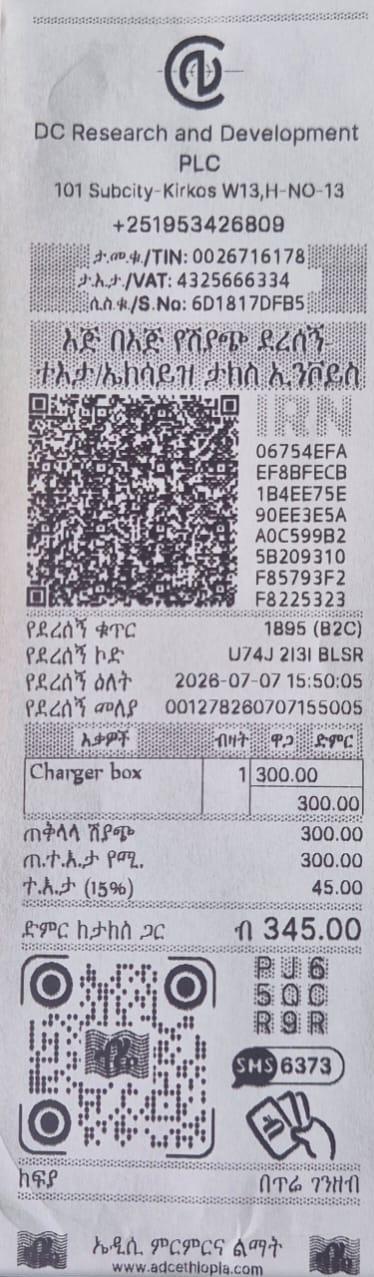
| የደረሰኝ ቅጂ (Invoice Copy) | ነባር ደረሰኝን በድጋሚ ማተም (ኮፒ)። |
| ሽያጭ ሰርዝ (Cancel Sales) | የተቆረጠ ደረሰኝን መሰረዝ (ገንዘብ መመለስ)። |
የገንዘብ መቀበያ
ይህንን አማራጭ ቀደም ሲል በብድር በተሸጠ ደረሰኝ ላይ ክፍያ ሲፈጸም ወይም ወደ መደበኛ ሽያጭ ለመቀየር ይጠቀሙበት።
- የገንዘብ መቀበያ የሚለውን ይምረጡ።
- የደረሰኝ ቁጥሩን (invoice number) ያስገቡ።
- የመካከለኛውን ቁልፍ (7) በመጫን ያረጋግጡ።
- የብድሩን መጠን (credit amount) ያስገቡ።
- ግብይቱን ያረጋግጡ።
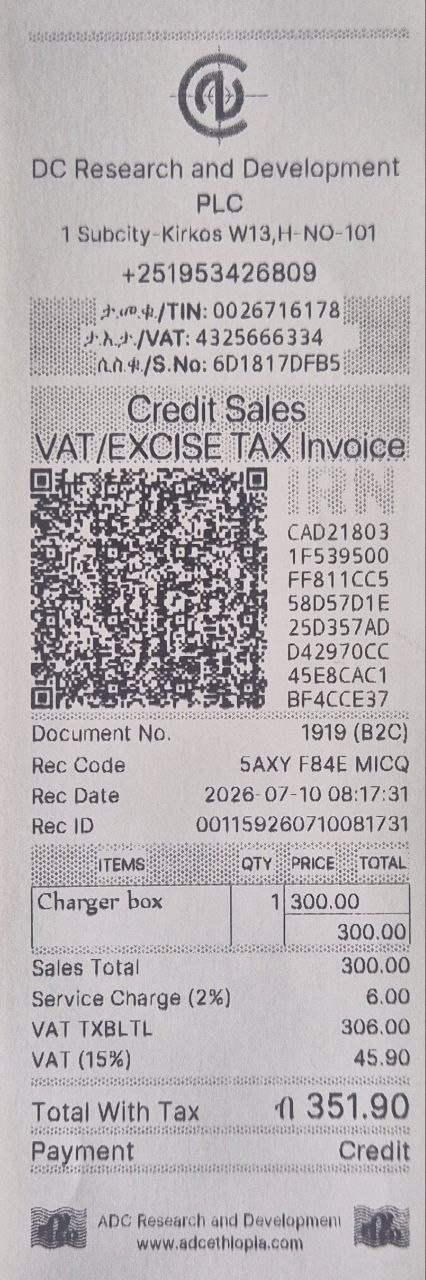
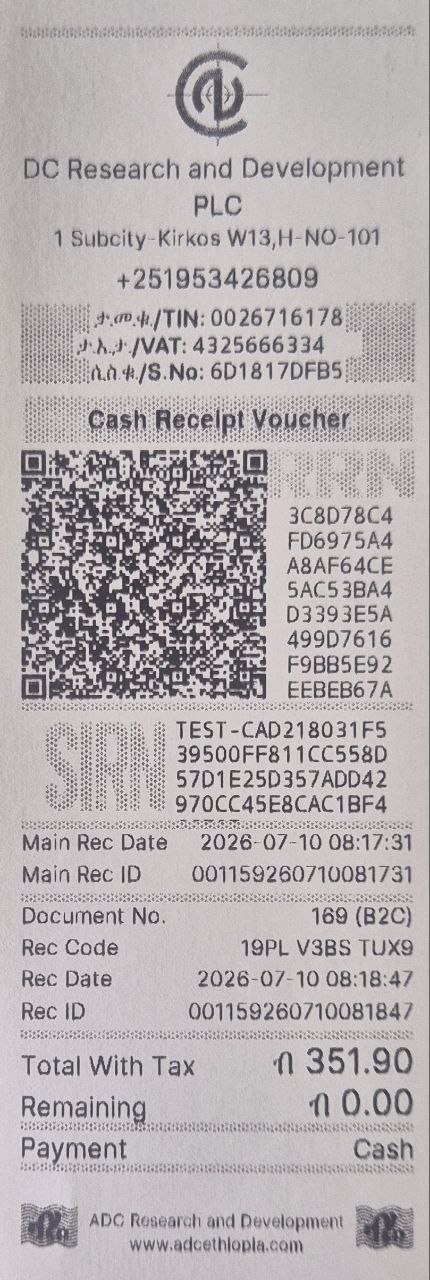
- የጥበቃ ስክሪን ይታያል፤ ከዚያም ከጥቂት ጊዜ በኋላ የብድር ሽያጭ ደረሰኙ ይታተማል።
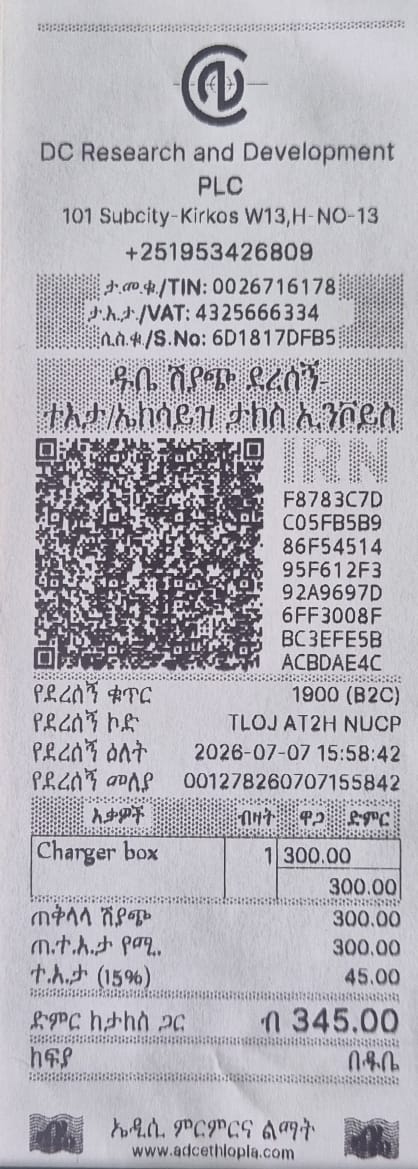 |
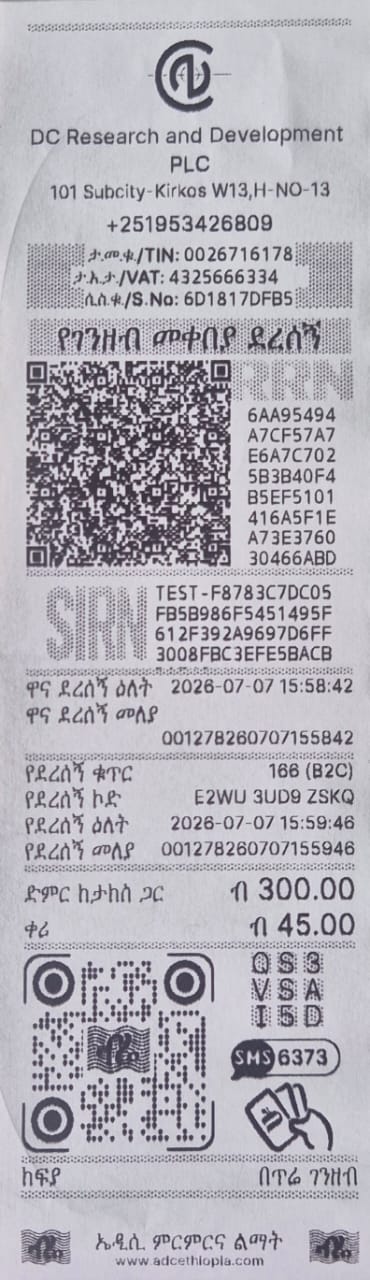 |
ተቀናሽ ግብር
ይህንን አማራጭ የተቀናሽ ግብር /ዊዝሆልዲንግ ታክስ ደረሰኝ ለመቁረጥ ይጠቀሙበት።
ሀ. ዋናው ደረሰኝ በነካ ላይ የተቆረጠ ከሆነ
- ተቀናሽ ግብር የሚለውን ይምረጡ።
- የሚከተለውን ይምረጡ፦
-
የደረሰኝ መለያ – የደረሰኝ ቁጥር በመጠቀም መፈለግ።
-
የዋናውን ደረሰኝ ቁጥር ያስገቡ እና ያረጋግጡ።
- የጥበቃ ስክሪን ይታያል፤ ከዚያም ከጥቂት ጊዜ በኋላ የዊዝሆልዲንግ ታክስ ደረሰኙ ይታተማል።
ለ. ዋናው ደረሰኝ በሌላ (በነካ ባልሆነ) መሣሪያ ላይ የተቆረጠ ከሆነ
- ተቀናሽ ግብር የሚለውን ይምረጡ።
- የሚከተለውን ይምረጡ፦
-
ታ.መ.ቁ – የገዢውን የቲን (TIN) ቁጥር በመጠቀም።
-
የገዢውን የቲን (TIN) ቁጥር እና ከታክስ በፊት ያለውን አጠቃላይ ዋጋ (pre-tax amount) ያስገቡ።
- የአንድ ጊዜ የይለፍ ቃል (OTP) በስክሪኑ ላይ ይታያል፤ ይህንን OTP በስክሪኑ ላይ ወደሚታየው የአጭር የጽሑፍ መልዕክት ቁጥር (short code) ይላኩ።
- ከአጭር ቁጥሩ የተላከሎትን የጽሑፍ መልዕክት መመሪያ ይከተሉ።
- የOTP ሂደቱ ከተጠናቀቀ በኋላ በነካ ላይ መሃል ቁልፉን ይጫኑ።
- የጥበቃ ስክሪን (wait screen) ይታያል፤ ከዚያም ከጥቂት ጊዜ በኋላ የተቀናሽ ግብር/ዊዝሆልዲንግ ታክስ ደረሰኙ ይታተማል።
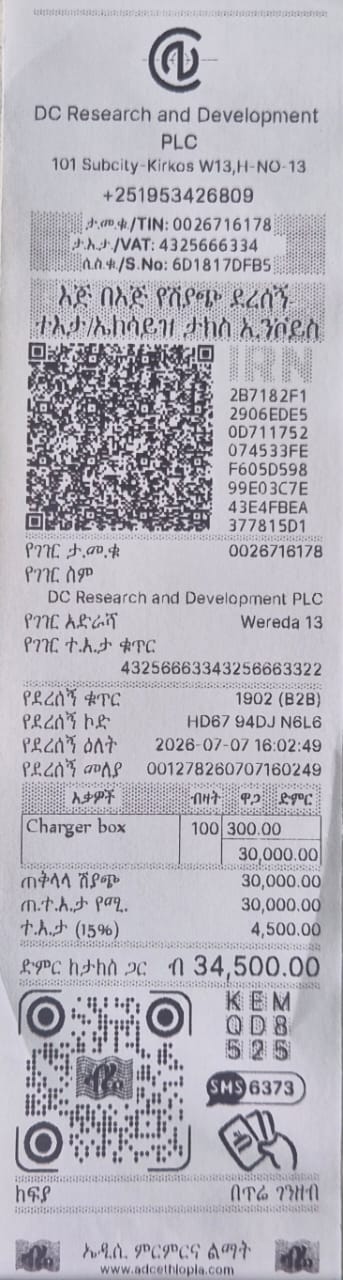 |
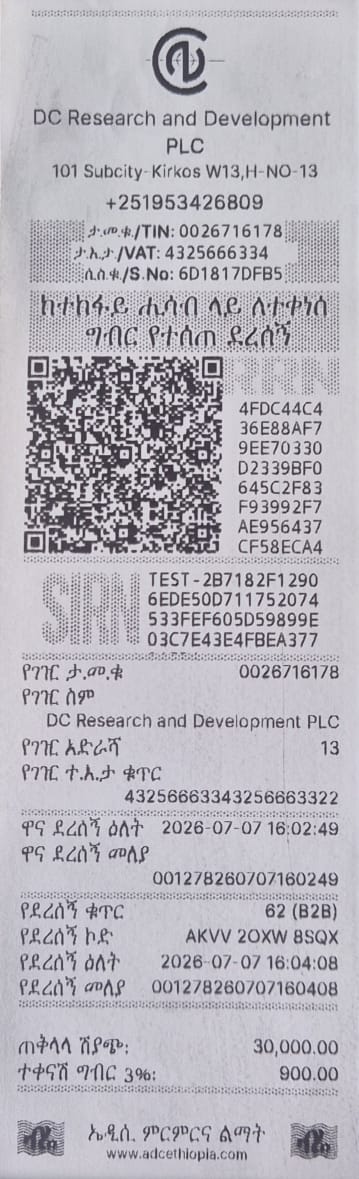 |
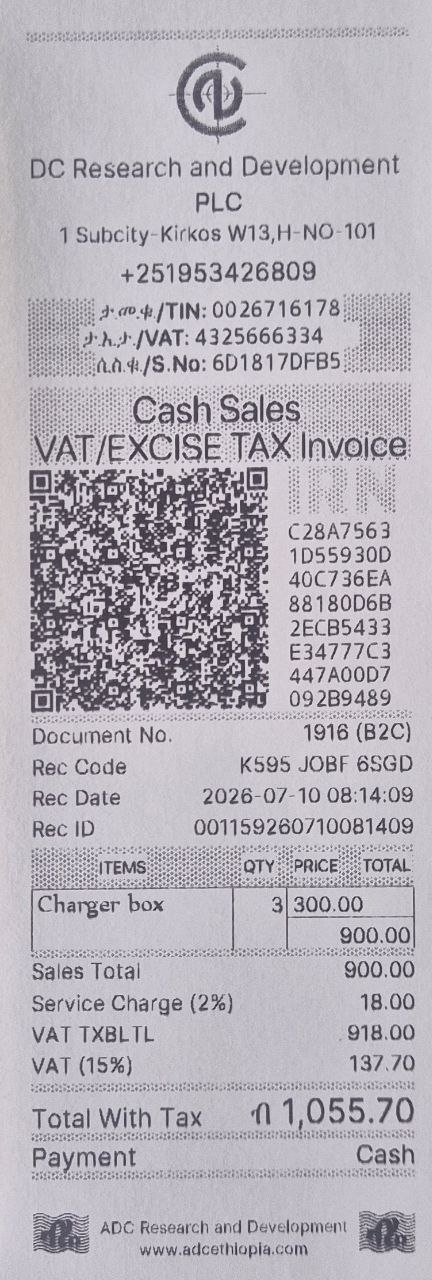
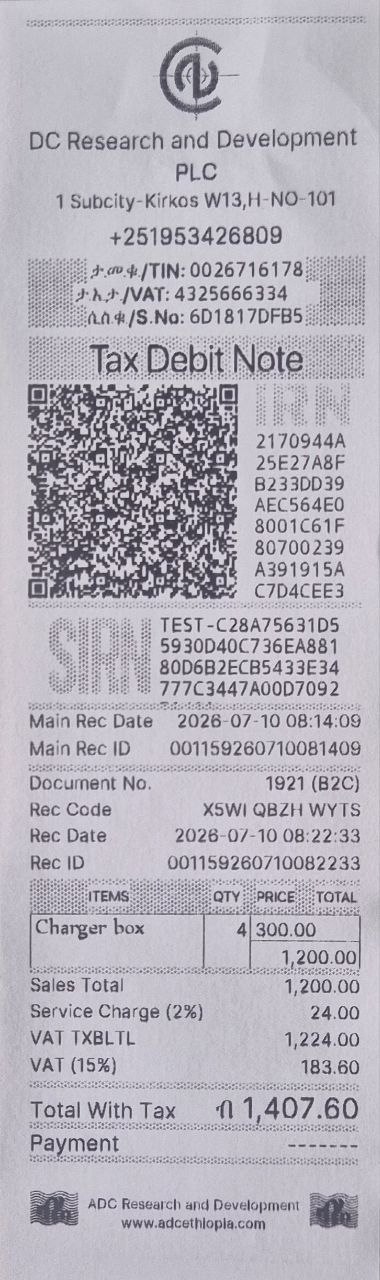
የታክስ ክሬዲት ሰነድ/የታክስ ዴቢት ሰነድ
እነዚህን አማራጮች አስቀድመው በተቆረጡ ደረሰኞች ላይ ማስተካከያ ለማድረግ ይጠቀሙባቸው።
- የታክስ ክሬዲት ሰነድ ወይም የታክስ ዴቢት ሰነድ የሚለውን ይምረጡ።
- የደረሰኝ ቁጥሩን ያስገቡ።
- መሣሪያው የዋናውን ደረሰኝ ዕቃዎች ዝርዝር ያሳያል።
- ማስተካከያ ሊደረግባቸው የሚፈልጓቸውን ዕቃዎች ይምረጡ።
- አዲሱን ብዛት (quantity) ወይም ዋጋ ያስገቡ።
- ማስተካከያዎቹን ያረጋግጡ።
- የጥበቃ ስክሪን (wait screen) ይታያል፤ ከዚያም ከጥቂት ጊዜ በኋላ ክሬዲት/ዴቢት ኖቱ ይታተማል።
ማሳሰቢያ፦ ክሬዲት ኖት (Credit Note) የደረሰኙን ጠቅላላ ዋጋ ይቀንሳል፤ ዴቢት ኖት (Debit Note) ደግሞ የደረሰኙን ጠቅላላ ዋጋ ይጨምራል።
 |
 |
 |
 |
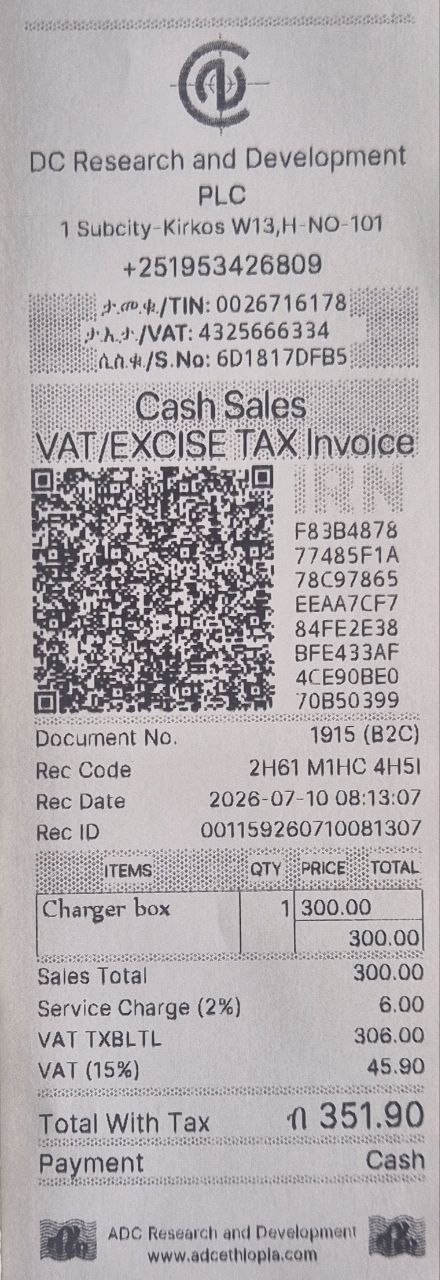
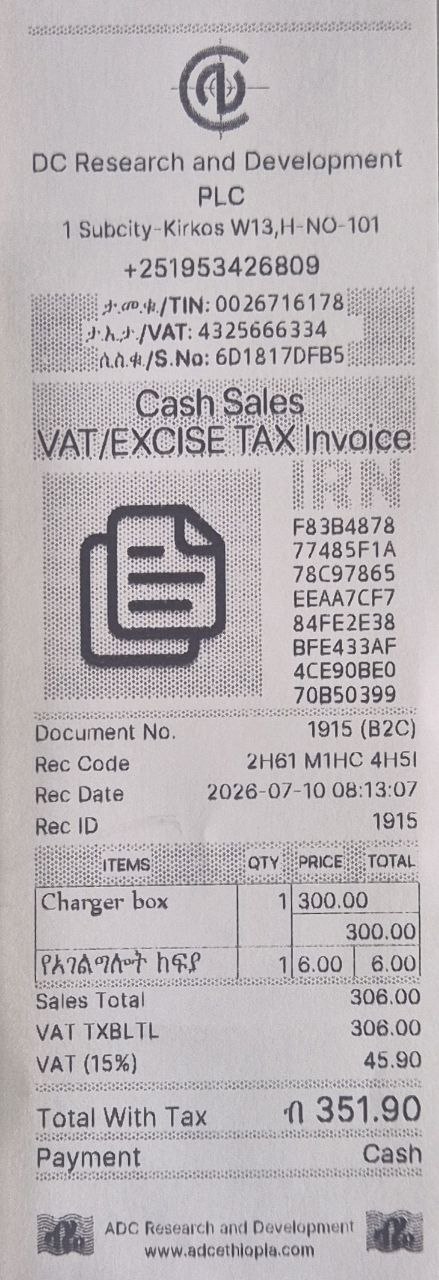
የደረሰኝ ቅጂ
ይህንን አማራጭ የአንድን ነባር ደረሰኝ ኮፒ (ቅጂ) በድጋሚ ለማተም ይጠቀሙበት።
- የደረሰኝ ቅጂ የሚለውን ይምረጡ።
- ደረሰኙን እንዴት መፈለግ እንደሚፈልጉ ይምረጡ፦
- የደረሰኝ መለያ – በደረሰኝ ቁጥር መፈለግ።
-
የደረሰኝ ቁጥር – በሰነድ ቁጥር መፈለግ።
-
የደረሰኝ ቁጥሩን ወይም የሰነድ ቁጥሩን ያስገቡ።
- Enter (አስገባ) ን በመጫን ያረጋግጡ።
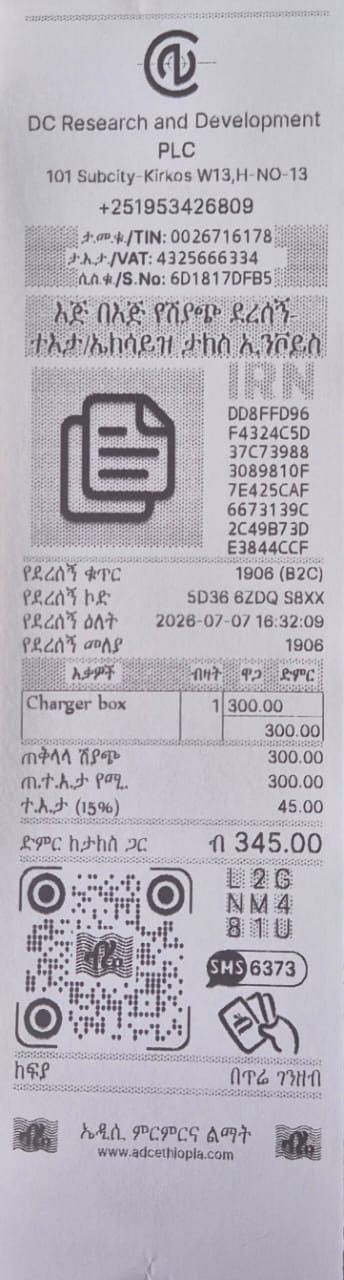
- የጥበቃ ስክሪን ይታያል፤ ከዚያም ከጥቂት ጊዜ በኋላ በደረሰኙ ላይ የኮፒ ምልክት የተደረገበት የደረሰኙ ቅጂ ይታተማል።
ጥቆማ፦ ይህ አማራጭ ደንበኛ ደረሰኝ ቢጠፋበት እና ቅጂ ሲፈልግ በጣም ጠቃሚ ነው።
 |
 |
ሽያጭ ሰርዝ
ይህንን አማራጭ ሙሉ በሙሉ ደረሰኝን ለመሰረዝ እና ገንዘብ ለመመለስ (refund) ይጠቀሙበት።
- ሽያጭ ሰርዝ የሚለውን ይምረጡ።
- ደረሰኙን እንዴት መፈለግ እንደሚፈልጉ ይምረጡ፦
- የደረሰኝ መለያ – በደረሰኝ ቁጥር መፈለግ።
-
የደረሰኝ ቁጥር – በሰነድ ቁጥር መፈለግ።
-
የደረሰኝ ቁጥሩን ወይም የሰነድ ቁጥሩን ያስገቡ።
- Enter (አስገባ) ን በመጫን ስረዛውን ያረጋግጡ።
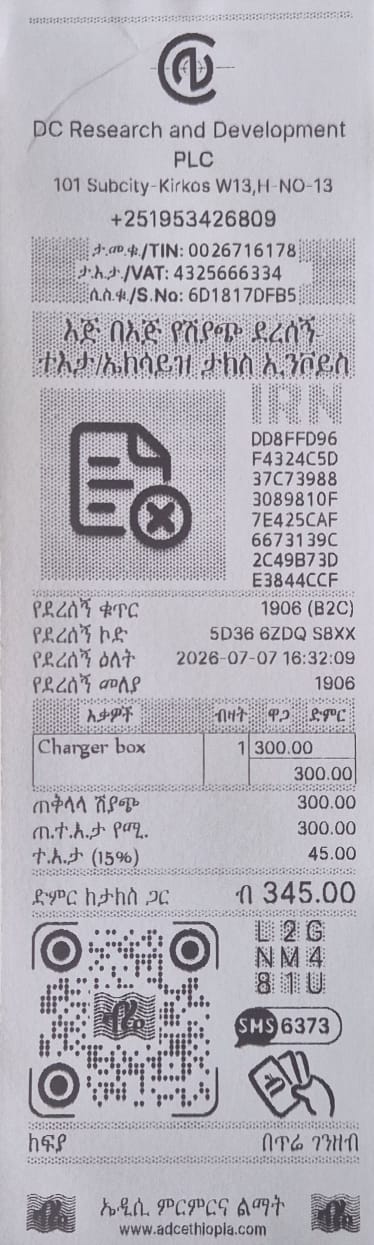
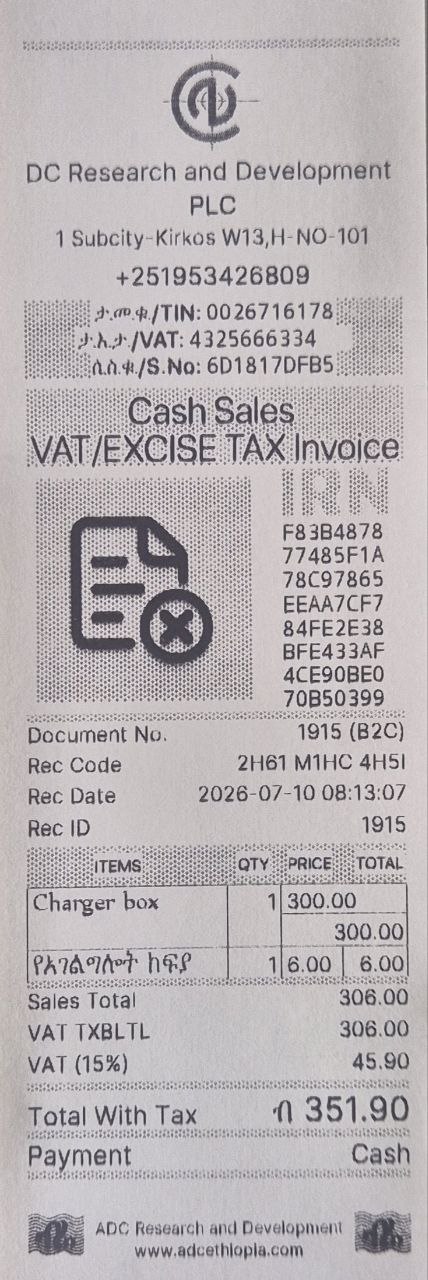
- የጥበቃ ስክሪን ይታያል፤ ከዚያም ከጥቂት ጊዜ በኋላ ደረሰኙ ይሰረዛል፤ እንዲሁም በላዩ ላይ የኤክስ ምልክት ያለበት የስረዛ (refund) ደረሰኝ ይታተማል።
አስፈላጊ ማሳሰቢያ፦ መሰረዝ የሚቻለው ገና ሂሳባቸው ያልተወራረደ (not settled) ደረሰኞችን ብቻ ነው። ለቢቱቢ ደረሰኞች፣ የአንድ ጊዜ የይለፍ ቃል (OTP) በስክሪኑ ላይ ይታያል፤ ነጋዴውም ሆነ ገዢው ይህንን OTP መላክና ማረጋገጥ አለባቸው። ስረዛው ሊቀጥል የሚችለው ይህ ሲጠናቀቅ ብቻ ነው።
|
 |
ከመስመር ውጪ መሆን
የኢንተርኔት ግንኙነት በሌለበት (Offline) ወቅት፦
- የደረሰኝ ቅጂ ማውጣት እና ሽያጭ መሰረዝ ላይሰሩ ይችላሉ።
- መሣሪያው ወደ ኢንተርኔት (Online) እንዲገቡ መልዕክት ያሳያችኋል።
የሚቀጥሉ እርምጃዎች
የሽያጭ ሪፖርቶችን እንዴት ማውጣት እንደሚችሉ ይማሩ።
➡️ ወደ ሪፖርቶች ይቀጥሉ
Invoice Adjustment
The Invoice Adjustment feature allows you to work on previously issued invoices which is useful for handling returns e.t.c.
Accessing Invoice Adjustment
- From the Home Menu, navigate to Sales.
- Select Invoice Adjustment.
- Press the middle key (button 7) to enter.
You will see the following options:
| Option | Description |
|---|---|
| Credit Sale | Create a Sales receipt based on an existing Credit invoice. |
| Withholding | Issue a withholding tax invoice. |
| Credit Note | Issue a credit note against an invoice. |
| Debit Note | Issue a debit note against an invoice. |
| Invoice Copy | Print a duplicate of an existing invoice. |
| Cancel Sales | Cancel (refund) an existing invoice. |
Credit Sale
Use this to create a credit sale based on an existing invoice.
- Select Credit Sale.
- Enter the invoice number.
- Confirm by pressing middle key (7).
- Enter the credit amount.
- Confirm the transaction.
- A wait screen will be displayed and shortly after the credit sale receipt will be printed.
 |
 |
Withholding
Use this to issue a withholding tax invoice.
-
if origional invoice was issued on Neka system
-
Select Withholding.
- Choose:
- Via Invoice – enter the invoice number.
- Enter and confirm source invoice number.
-
A wait screen will be displayed and shortly after the withholding tax receipt will be printed.
-
if origional invoice was issued on a Non Neka system
-
Select Withholding.
- Choose:
- Via TIN – enter the buyer's TIN.
- Enter the buyer's TIN and the pre tax amount.
- An OTP will be displayed on the screen, send it to the short code displayed
- follow the instructions on the text received from the shortcode up on sendeng the request.
- press enter on the device to confirm if OTP process is complete
- A wait screen will be displayed and shortly after the withholding tax receipt will be printed.
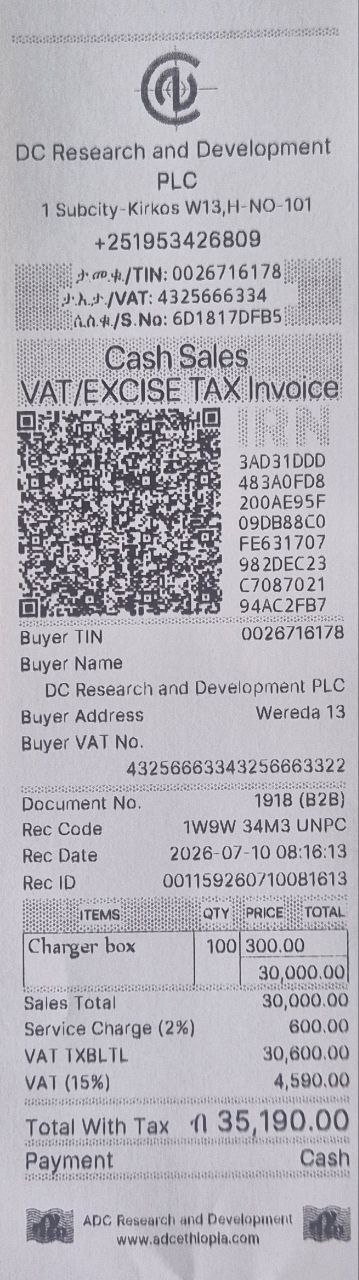 |
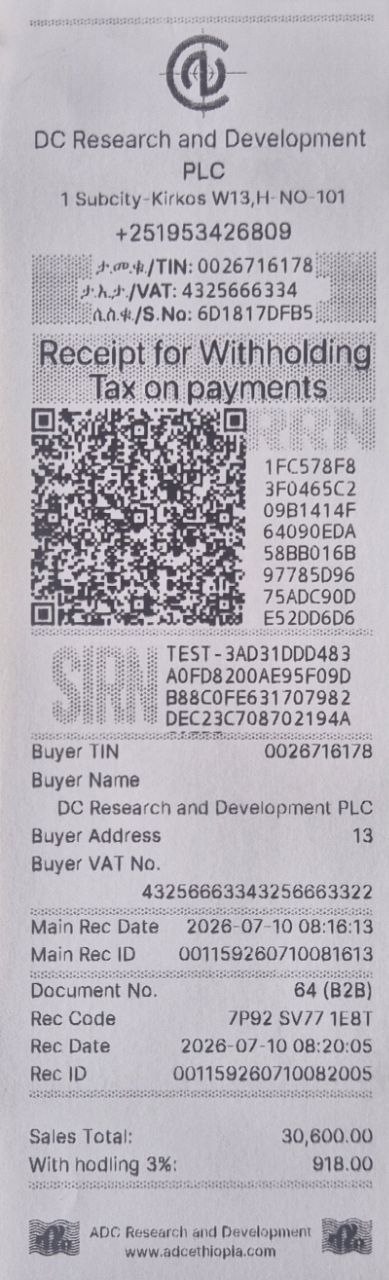 |
Credit Note / Debit Note
Use these to adjust existing invoices.
- Select Credit Note or Debit Note.
- Enter the invoice number.
- The device will show the original invoice items.
- Select the items to adjust.
- Enter the new quantities or amounts.
- Confirm the adjustments.
- A wait screen will be displayed and shortly after the credit/debit note will print.
Note: Credit notes reduce the invoice total; debit notes increase it.
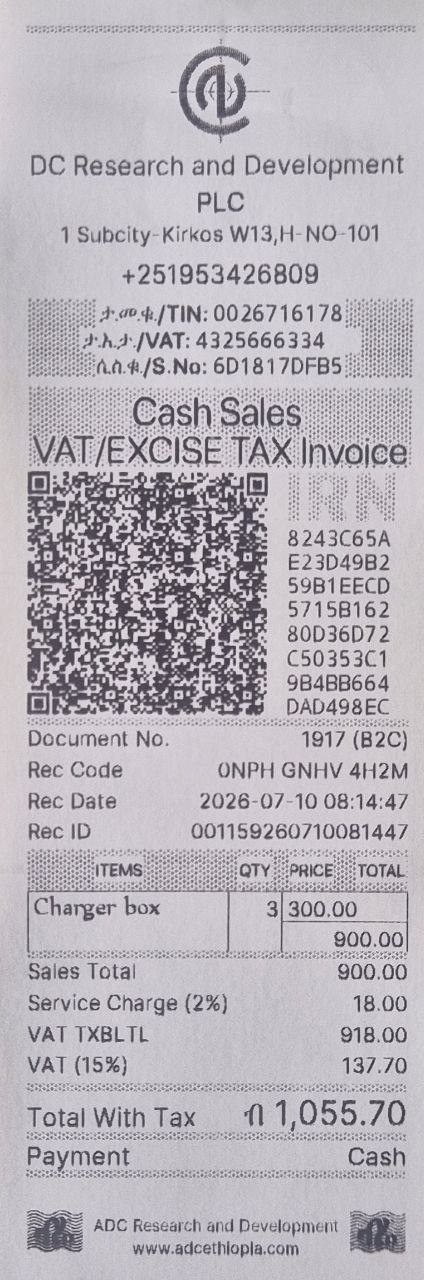 |
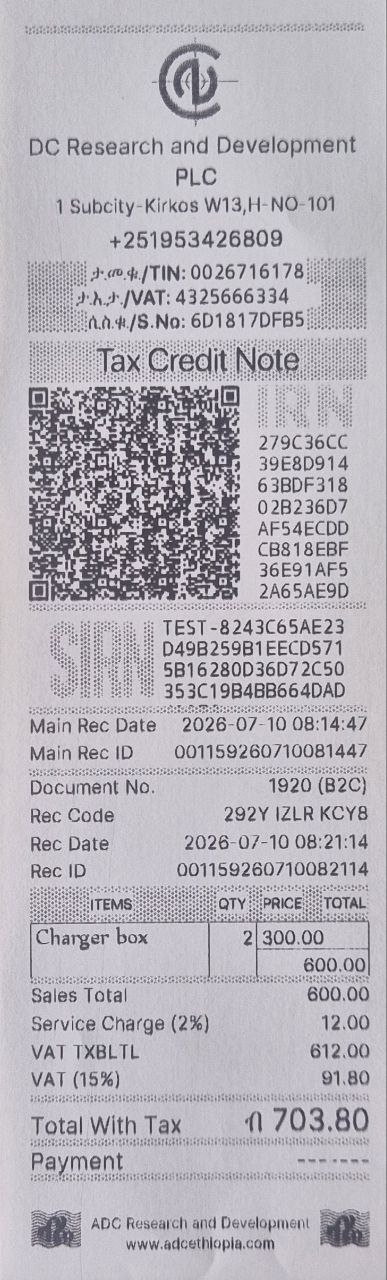 |
 |
 |
Invoice Copy
Use this to print a duplicate of an existing invoice.
- Select Invoice Copy.
- Choose how to find the invoice:
- By Receipt Number – enter the receipt number.
- By Document Number – enter the document number.
- Enter the invoice number or document number.
- Confirm by pressing enter
- A wait screen will be displayed and shortly after a duplicate receipt will be printed with copied image on the invoice.
Tip: Use this if a customer loses their receipt and needs a copy.
 |
 |
Cancel Sales (Refund)
Use this to cancel (refund) an existing invoice.
- Select Cancel Sales.
- Choose how to find the invoice:
- By Receipt Number – enter the receipt number.
- By Document Number – enter the document number.
- Enter the invoice number or document number.
- Confirm the cancellation by pressing enter
- A wait screen will be displayed and shortly after invoice will be cancelled, and a refund receipt will print with cancelled image on the invoice.
Important: Only invoices that are not yet settled can be cancelled. For B2B invoices, an OTP (One‑Time Password) will be displayed on the screen and both the merchant and the buyer must send the otp and confirm. only then can the cancellation continue.
|
 |
Offline Considerations
If you are offline:
- Invoice copies and cancellations may not be possible.
- The device will prompt you to go online.
Next Steps
Learn how to generate sales reports.
➡️ Continue to Reports